Seller guide
What is text-to-join SMS?
Text-to-join is an invitation to text a specific word to a specific phone number. In SparkleText, a seller configures that keyword, a reply, and a destination link; when a customer texts the exact active word to the assigned number, SparkleText can record the opt-in and send the configured reply.
Number activation, opt-outs, subscriber limits, and reply safeguards can affect what happens next. Test your own setup before you share it.
How a keyword reply works
- 1
Create the keyword
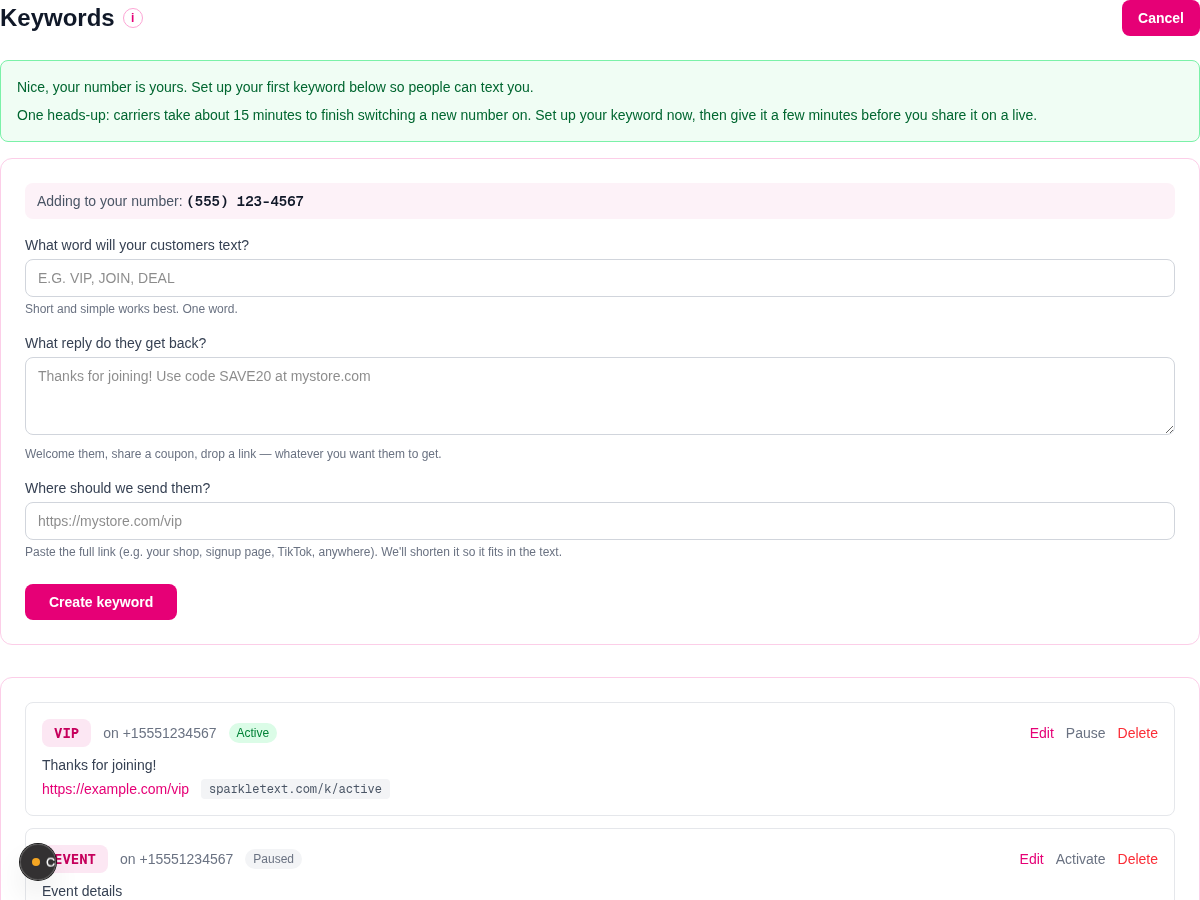
In Keywords, select the receiving number, save a short word, write the seller reply, and add the destination link.
- 2
Display the invitation
Show customers the exact word and the number together. A website, live overlay, post, flyer, packaging insert, or event sign can all make the instruction visible.
- 3
Customer texts the word
The customer texts the saved word to that number. Capitalization is normalized, but a typo or similar word does not match the keyword.
- 4
Reply and list behavior
For an active, configured keyword, SparkleText can add the customer to the seller's list and send the reply with a SparkleText short link and opt-out footer. A missing reply is not proof that no subscriber record exists; use Help to troubleshoot.
Choose a keyword customers can type
Use a short, easy-to-spell word that fits the one action you are inviting: VIP, CATALOG, or a product-specific word. Keep the displayed word identical to the one you save, and always pair it with the receiving number.
Avoid these common mistakes
- Do not rely on a near match: customers need the exact saved word.
- Do not use STOP, HELP, START, or their related opt-out and help commands as a campaign keyword. Those commands have their own SMS behavior.
- Do not show a different number from the one attached to the keyword, and do not promote a new number before you have tested it.
Make the invitation clear
An invitation tells a customer what they will receive and gives them a clear choice. Name the seller, state the purpose, show the word and number, and include the program disclosures appropriate to the seller's message program. Review the seller's Terms and Privacy links before publishing.
Illustrative invitation
North Coast Goods: text VIP to (555) 010-2040 to join recurring promotional texts about product drops and sale reminders, including today's collection link.
Msg & data rates may apply. Msg frequency varies. Reply STOP to opt out, HELP for help. Consent is not a condition of purchase. Terms & Privacy.
A request for one link alone does not authorize later promotions. Use the same plain-language instruction wherever buyers may encounter it: on a live overlay, in a social post, on a product page, in a flyer, on packaging, or at an in-person event. See editable invitation examples for starting points. Check each placement's current rules before posting.
Worked seller example
This is an illustration, not a customer result or a promise of delivery. North Coast Goods chooses the keyword VIP, assigns it to its tested number, and writes: “Thanks for joining North Coast Goods for product drops and sale reminders. Here's today's collection.” The seller adds its destination URL in the dashboard.
SparkleText assembles the customer-facing reply with the seller's message, a generated SparkleText short link to that configured destination, and the system opt-out footer. The seller should not paste a second short link or a second opt-out footer into the welcome copy. Long replies and emoji can use more SMS segments; the editor limits an assembled keyword reply to two segments.
Questions buyers ask
- Who is text-to-join useful for?
- It is useful for sellers who want a simple way to connect a live, post, event, or package to a product link and a permission-based customer list. It does not require a SparkleText app or customer account.
- Will every text get an immediate reply?
- No. A keyword must be active and correctly configured, and carrier activation, opt-out status, subscriber limits, and safety controls can affect replies and delivery timing.
- What does a plan include?
- Current plans include keyword allowances, subscriber allowances, and monthly broadcast and inbox-reply allocations. Review current pricing for the limits and costs that apply to your account.
- Where can I get help?
- Start with the setup and troubleshooting guide. For account-specific support, use the contact details there.
Ready to set up your first keyword?
Create an account, choose a plan, set up and test your number, then save the keyword before you promote it.