Before the live
Send to people who already opted in when your sale is close enough to plan for.
Allow optional, privacy-limited measurement of how visitors find SparkleText and progress through setup? We do not collect message, phone, email, keyword, or full referrer data for this measurement.
Use SparkleText to manually prepare a focused update for people who already chose to receive your messages. This guide covers a practical before, during, and after-live workflow; it does not schedule a sale or promise turnout or delivery.
A useful cadence depends on your audience and sale. For example, a seller with 60 opted-in subscribers and four monthly lives might choose one reminder per live, then send an extra update only when a restock or drop is relevant. That is an illustration, not a required schedule, performance result, or automated rule.
Replace the business, product, date, time, and time zone before you send. These are seller-entered examples only: do not paste a URL or a second STOP footer into the composer. Attach a configured keyword when the message needs SparkleText to add its short link and applicable footer.
Send to people who already opted in when your sale is close enough to plan for.
Use when the live has started if the update is useful to your opted-in list.
Follow up only with a relevant next step, such as a short restock window.
Use for people who opted in to product updates when the item is actually available.
Use for an opted-in audience when a new item is ready to share.
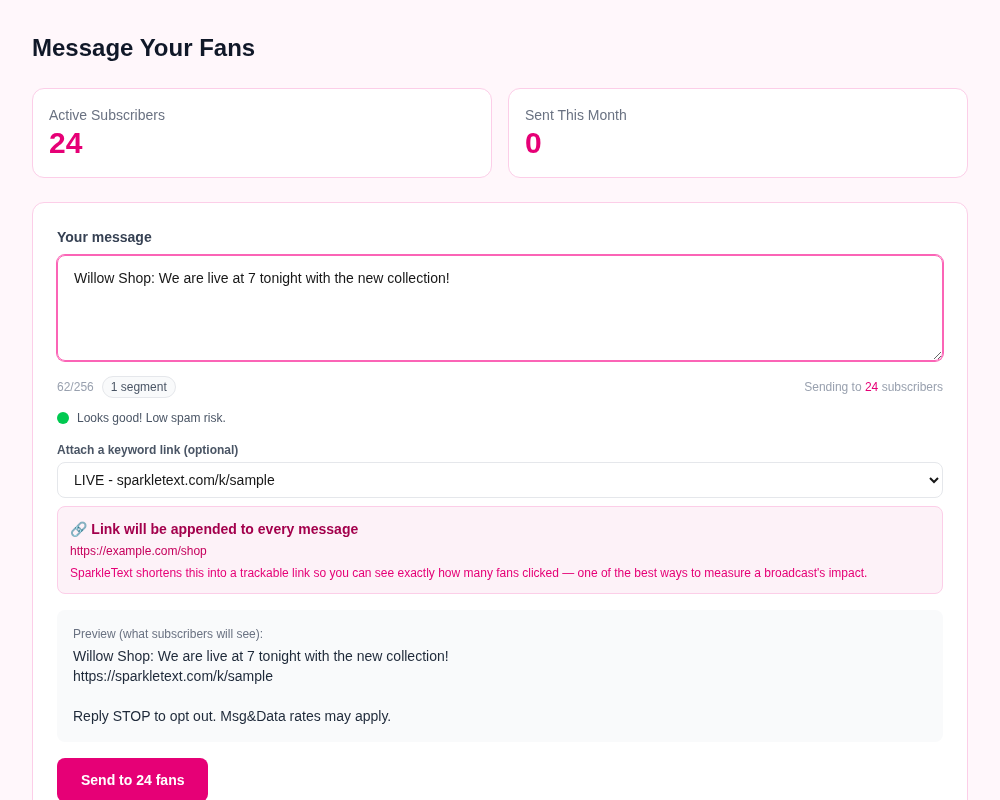
Send only to people who opted in, use the sending number associated with that audience, and keep updates within the purpose you disclosed. Recipients can reply STOP to opt out and HELP for support. Delivery and timing remain subject to account setup, safeguards, and carrier conditions.
SparkleText currently provides a manual compose, preview, confirmation, and send flow. It does not provide a verified live-event, inventory, or scheduled-send automation in this workflow.
Use the full opt-in template library, read Help, review current pricing, or start from SparkleText sign-up.